The Dashboard is your Certifi homepage for timesheets and is customised to you. This article describes how the dashboard works and the information it displays.
You can access the Dashboard at any time within Certifi by clicking on the Dashboard tab in the page's header.
On your Dashboard, Certifi shows you information relevant to your Certifi role and flagged for your attention.
Here is a guide to the different sections of your Dashboard:
Key Performance Indicators (KPIs)
- Your KPIs are visible below your name in the top right of the Dashboard.
- These KPIs will be relevant to your Certifi role.
- Here is a guide to the KPIs which may be displayed on your Dashboard:
- To Review: The number of timesheets flagged for your attention.
- Outstanding: The total outstanding value of timesheets flagged as Approved for Payment.
- Overdue: The total outstanding value of overdue timesheets. The due dates of overdue timesheets are displayed in red.

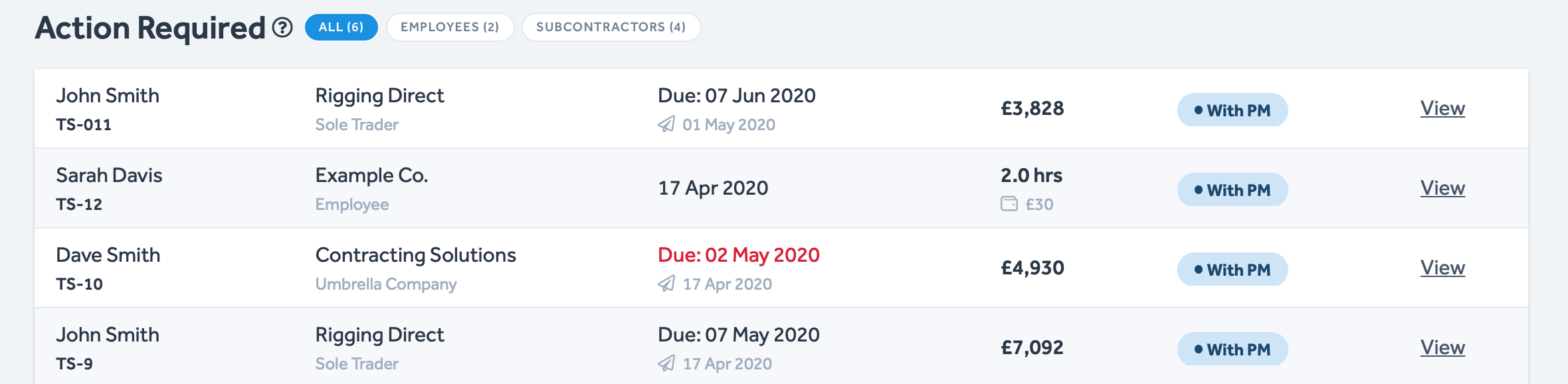
Action Required
- This table shows a list of timesheets that are flagged for your attention.
- Clicking on Employees or Subcontractors (next to the Action Required title) will filter the table to show only timesheets from the specified role.
Confirm as Paid
- This table shows timesheets marked as Approved for Payment after being approved by a Finance user.
- Clicking on Employees or Subcontractors (next to the Action Required title) will filter the table to show only timesheets from the specified role.
- Once paid, click Confirm Paid to remove the timesheet from the table and update its state to Paid.

To learn more about Certifi's four-stage timesheet approval process, click here.
To protect the data privacy of our platform users, all data visible in images throughout this article is from a dummy dataset generated expressly for demonstration purposes. It is not real data.