If a Worker has a certificate they no longer need on their profile, Admin users can remove it. To delete certificates, follow these steps:
- Go to the Certificates tab (located in the page's header).
- From the Pick a User column, select a Worker.
- Select the certificate you want to delete.
For Certificates in the 'Expired', 'Expiring', 'In Review' or 'Approved' States
Complete the above steps (as shown below) and then click Renew in the right-hand column:
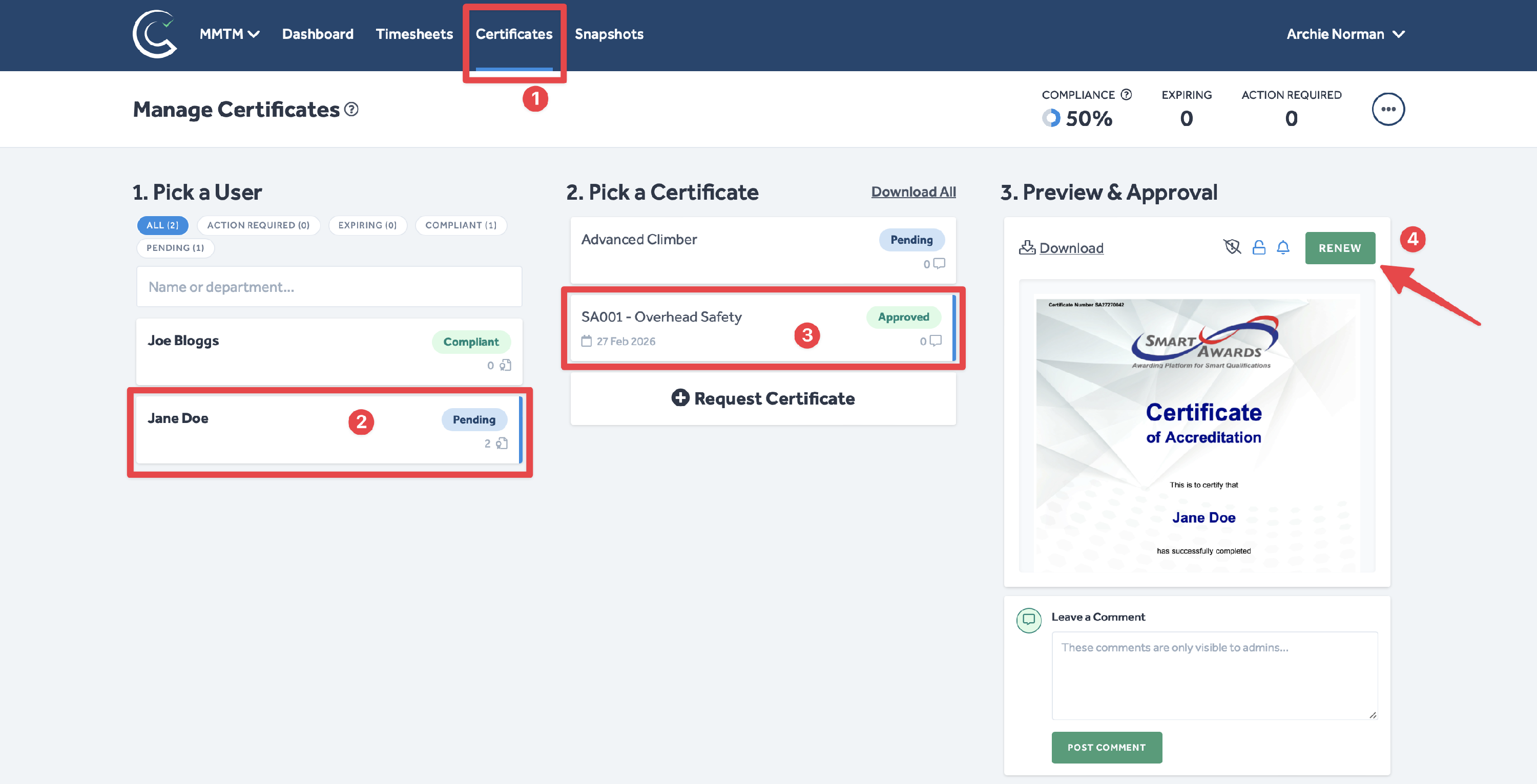
- This will open the 'Renew a Certificate' pop-up window.
- In this window, click Delete Request in the bottom left-hand corner:
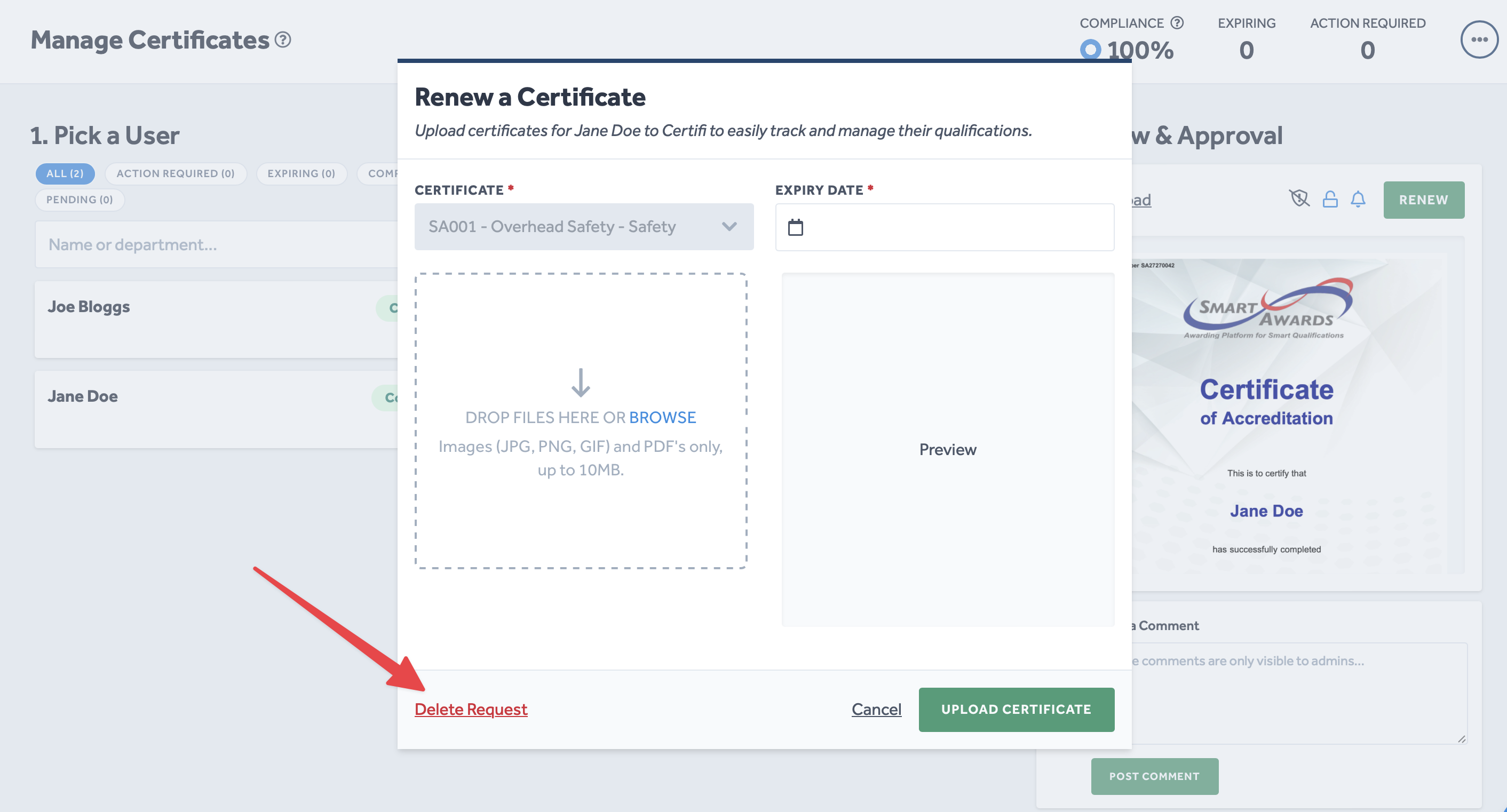
- A warning asking you to confirm the deletion of the certificate will appear.
- Once you click to confirm, the certificate will be removed from the user's profile.
For Certificates in the 'Pending' State
- Complete the 3 steps at the top of this page
- In the right-hand column, click the small 'here' text, as shown below:
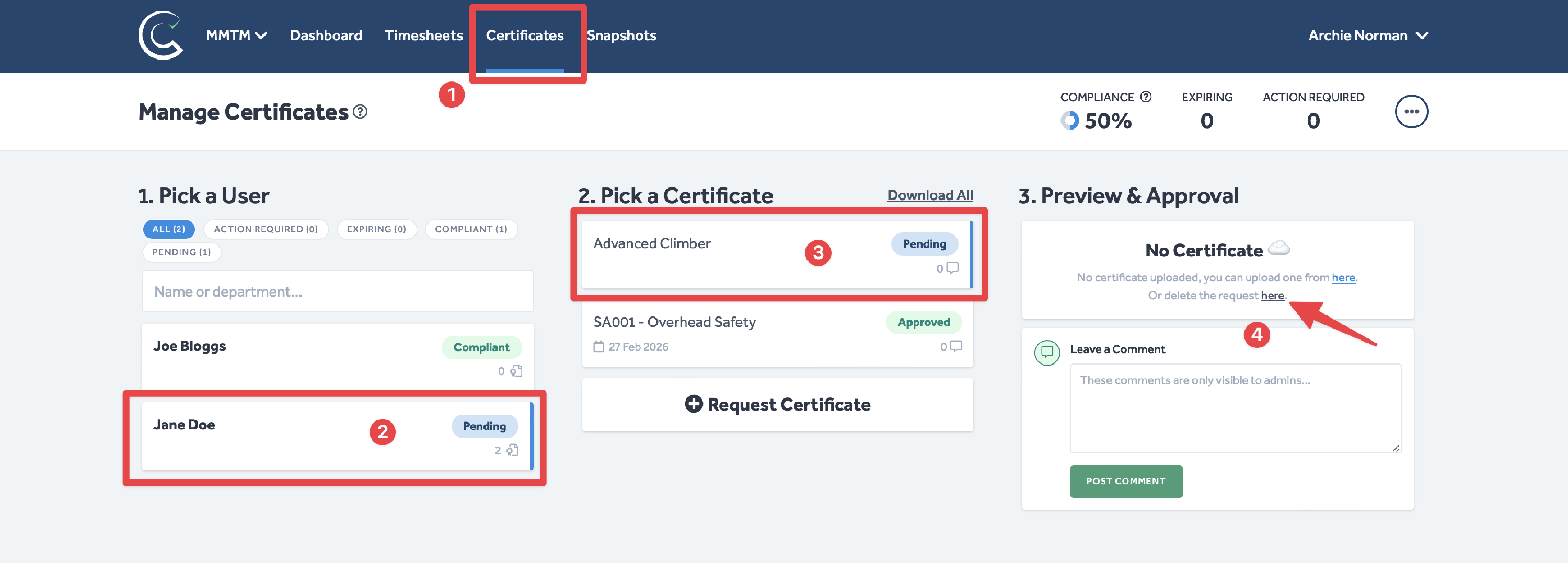
- A warning asking you to confirm the deletion of the certificate will appear.
- Once you click to confirm, the certificate will be removed from the user's profile.
To protect the data privacy of our platform users, all data visible in images throughout this article is from a dummy dataset generated expressly for demonstration purposes. It is not real data.