For your company's security, creating a user account is an invite-only process. Only Supervisor users have permission to invite new users, and users only have access to your Certifi workspace once they accept their email invitation. To create an Employee user, follow these steps:
- Navigate to the User Management page by clicking on your company name (in the page's header) and then selecting User Management from the drop-down list.

- Click on the circle with 3 dots in the top right, and then select New User from the dropdown.

- You will then be presented with the Invite User page to fill in the new user's details.
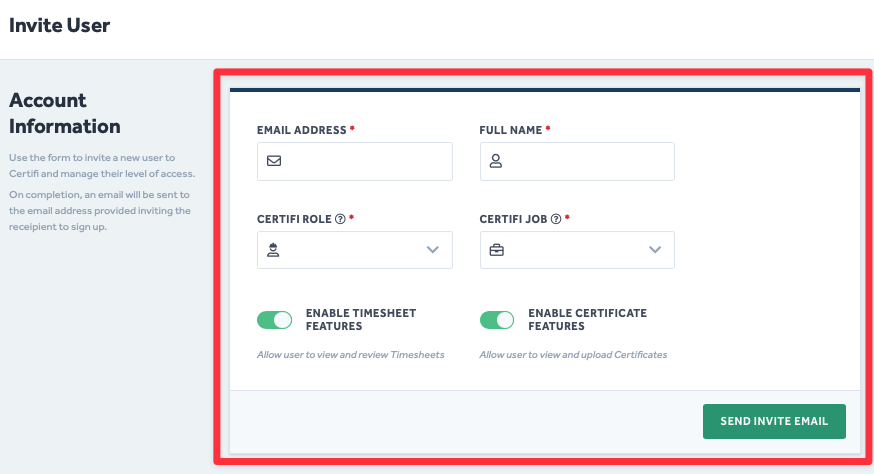
- Select Admin as the Certifi Role.
- Select one of the options in the Certifi Job field.
For a detailed explanation of the different Certifi Job field roles, click on the (?) icon next to the field or click here
- Once complete, click Send Invite Email.
- An automatic email is then sent to the specified email address with a link to sign up.
- You will receive a notification email once they have created their account and signed up.
If the user does not receive the invitation email, please first ask them to check their junk mail. If it is not present in their junk mail, follow the instructions here to send another invitation.
To protect the data privacy of our platform users, all data visible in images throughout this article is from a dummy dataset generated expressly for demonstration purposes. It is not real data.