If you are lacking an important certificate, an Admin user may manually request that you upload it to your Certifi profile. To respond to one of these certificate requests, follow these steps:
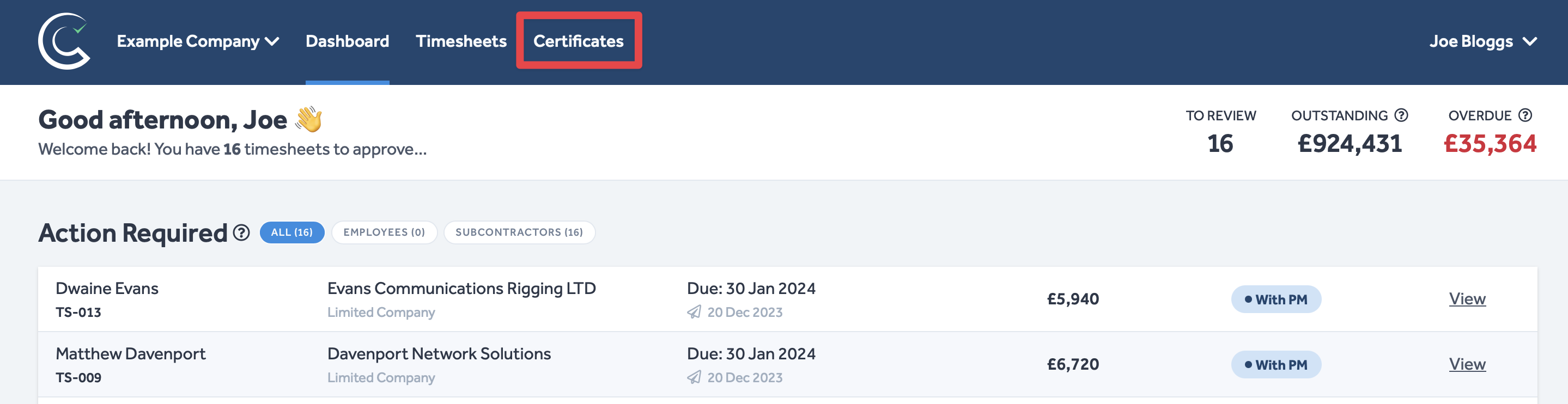
- Navigate to Certificates in the header of any Certifi page.
- Here, you will find all of your certificates and certificate requests.
- All Requested certificates are highlighted like this:
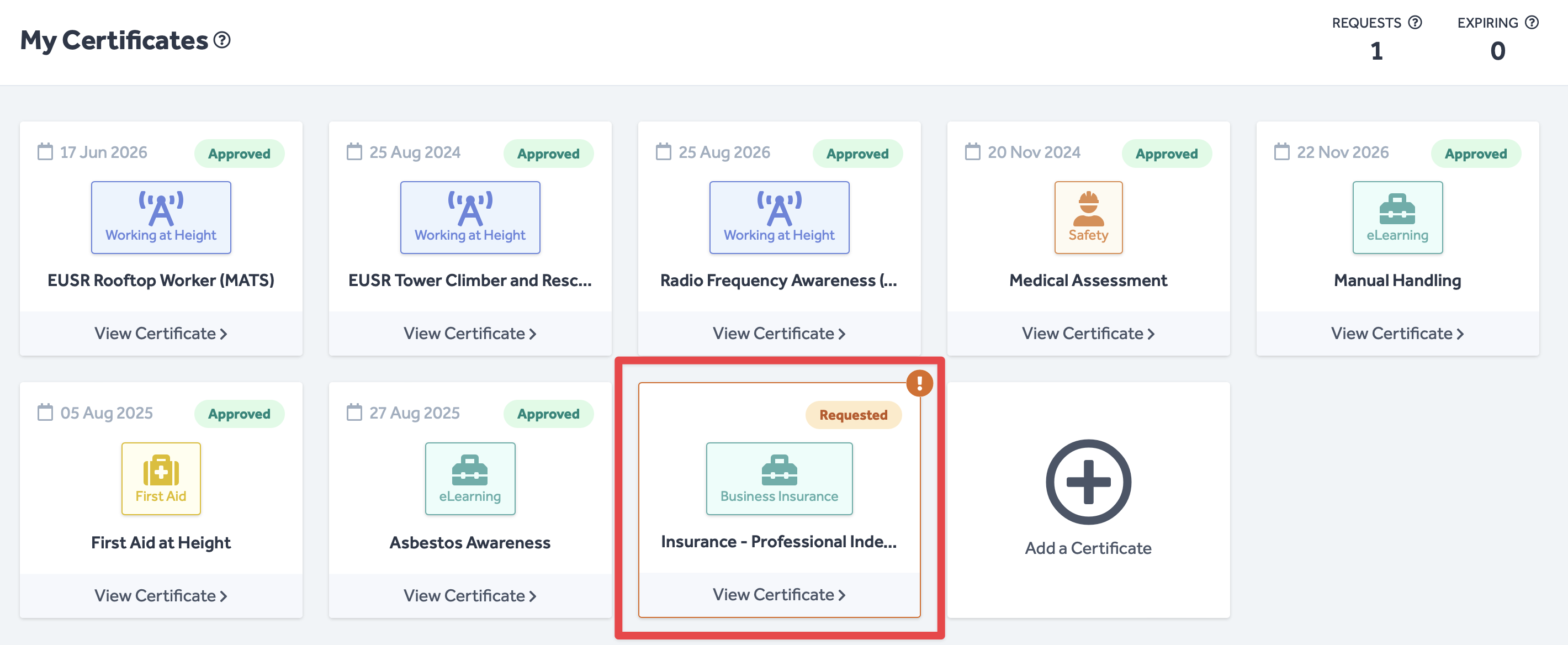
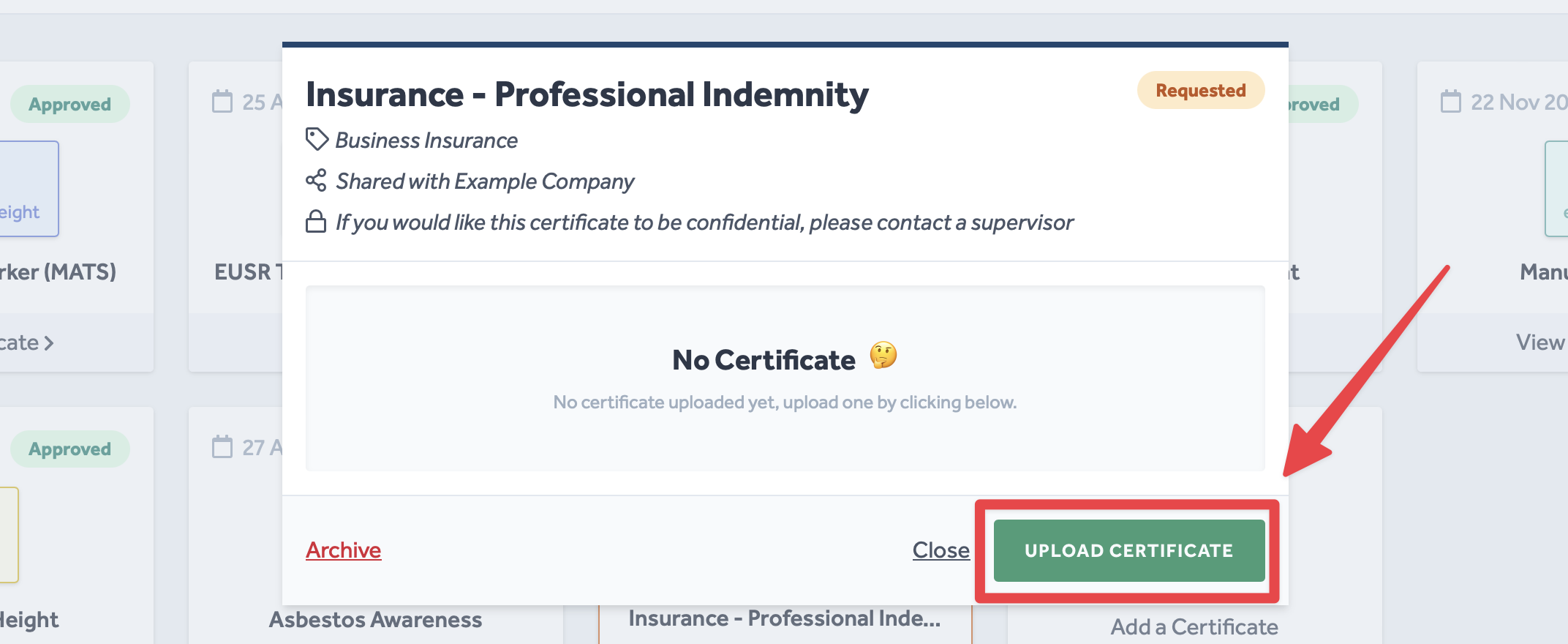
- Click on any Requested certificate to bring up the selected certificate's pop-up window.
- Click on the Upload Certificate button.
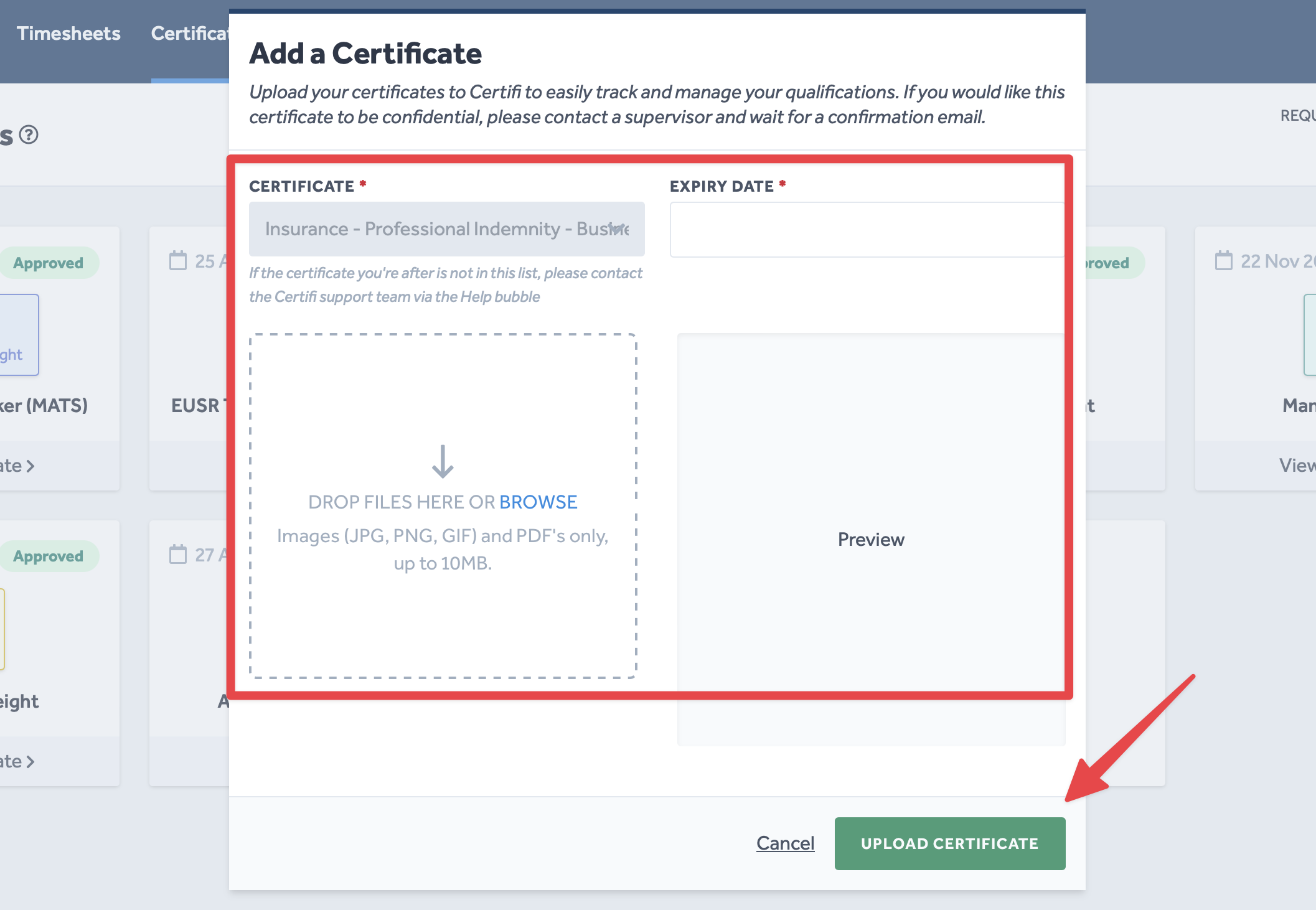
- You will be presented with the Add a Certificate pop-up window.
- Enter your certificate's Expiry Date.
- Follow the instructions in the dashed box to upload an image file of your certificate.
- When you are happy with the information, click Upload Certificate.
To protect the data privacy of our platform users, all data visible in images throughout this article is from a dummy dataset generated expressly for demonstration purposes. It is not real data.