To ensure your compliance to work, it is important to add all of your certificates to your Certifi profile. To add a new certificate to Certifi, follow these steps:
If you are responding to a certificate request sent by an Admin user, instructions for that can be found here.
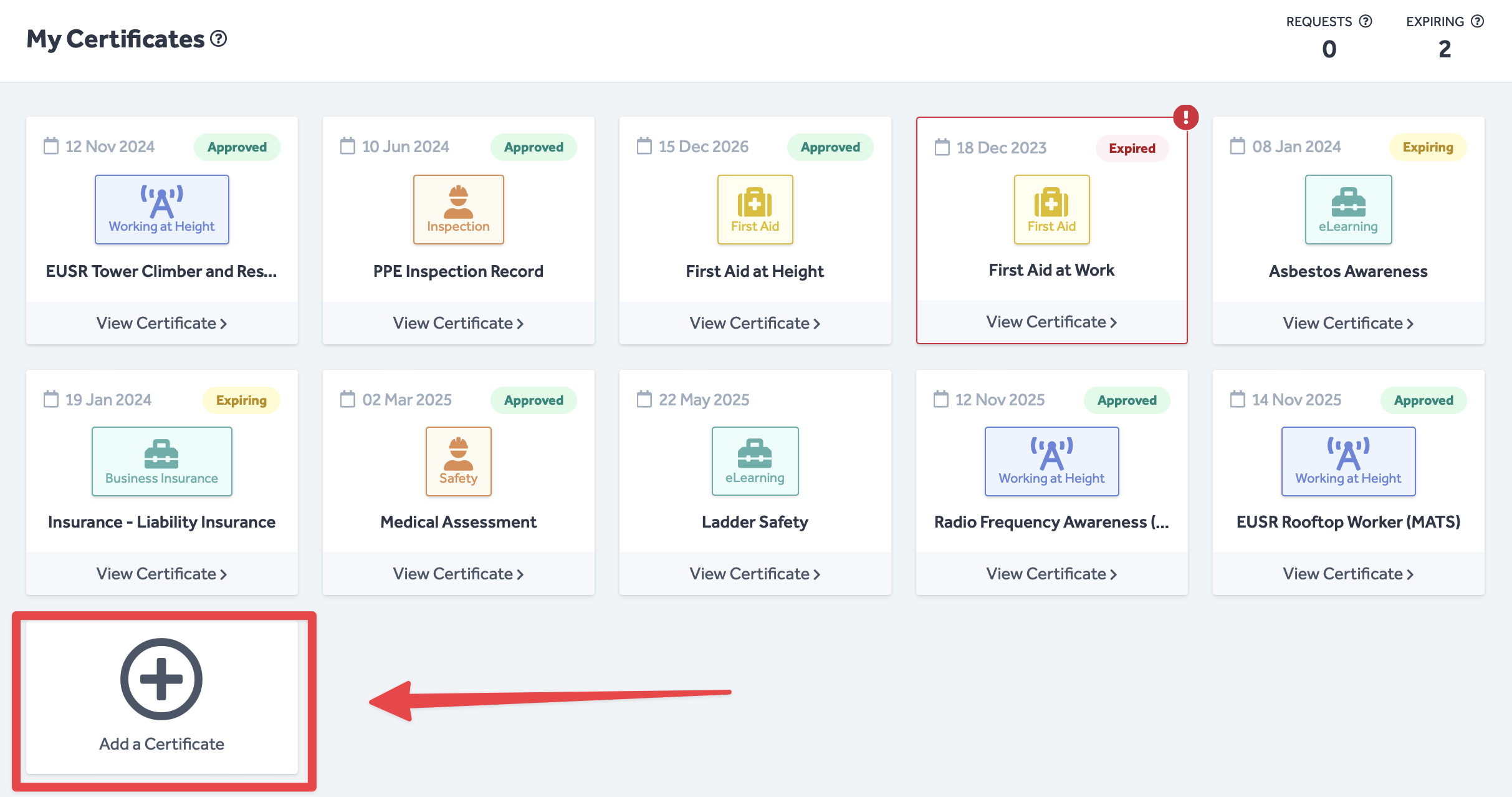
- Navigate to Certificates in the header of any Certifi page.

- Here, you'll find all of your certificates.
- To upload a new certificate, click on the Add a Certificate tile.
- You will then be presented with the following Add a Certificate pop-up window.
- In this pop-up window, make sure to:
- Select the appropriate certificate from the Certificate dropdown field.
- Fill in the Expiry Date of the new certificate.
- Select the appropriate certificate image file by following the instructions in the dashed box.
- Afterwards, just click the Upload Certificate button to upload the certificate.
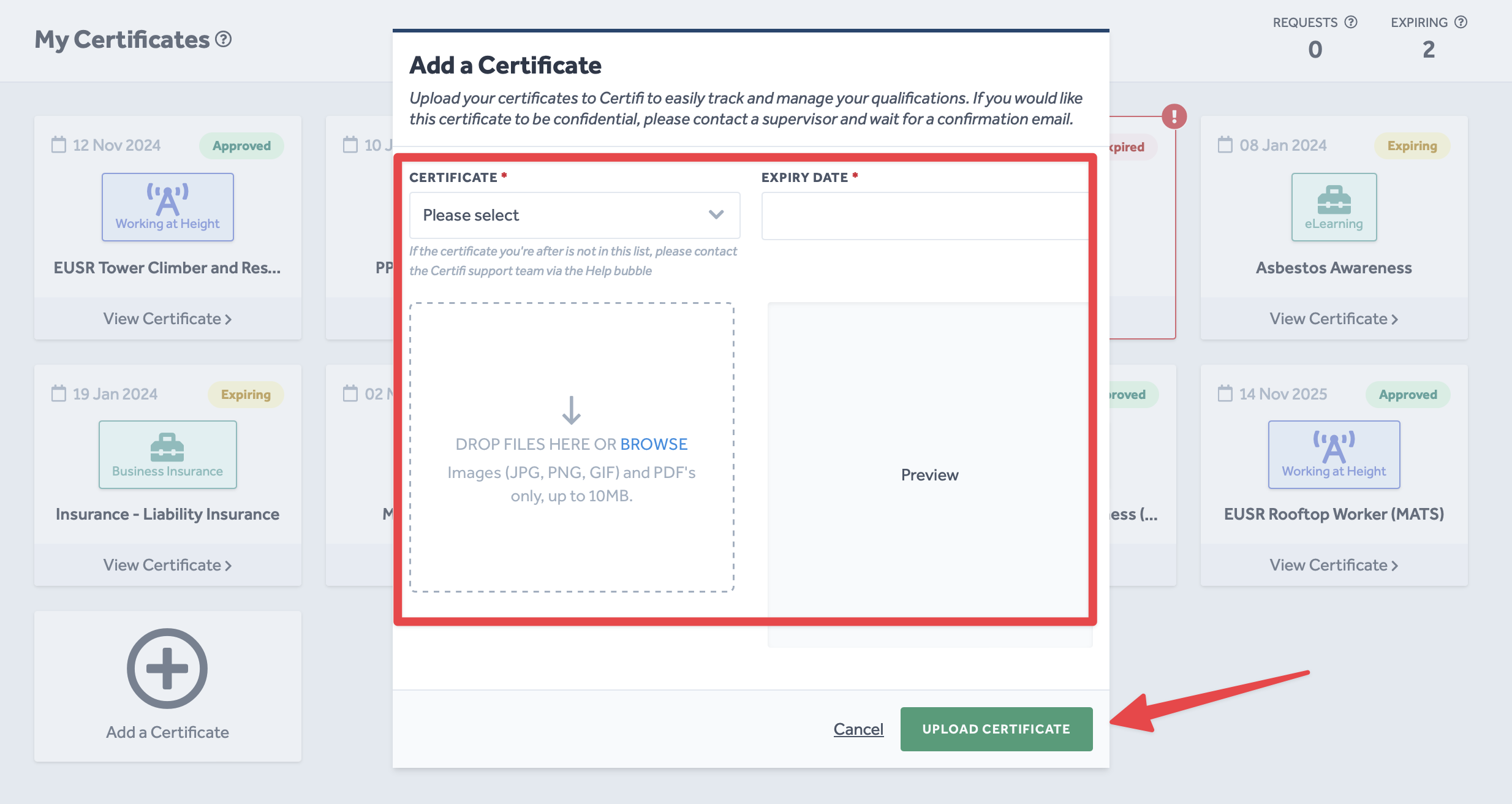
If the certificate you need to add is not present in the drop-down list, send an email to support@mmtm.io requesting it be added.
To protect the data privacy of our platform users, all data visible in images throughout this article is from a dummy dataset generated expressly for demonstration purposes. It is not real data.