Supervisor users can update any user's Certifi profile details using the User Profile page. To make changes to a user's Certifi profile, follow these steps:
-
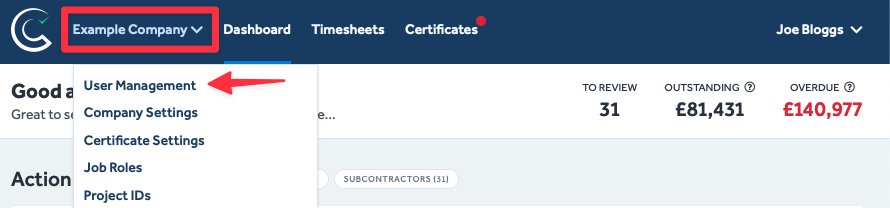
Navigate to the User Management page by clicking on your company name (in the page's header) and then selecting User Management from the drop-down list.
- Once in the User Management menu, select View on the line of the user's profile you wish to edit.
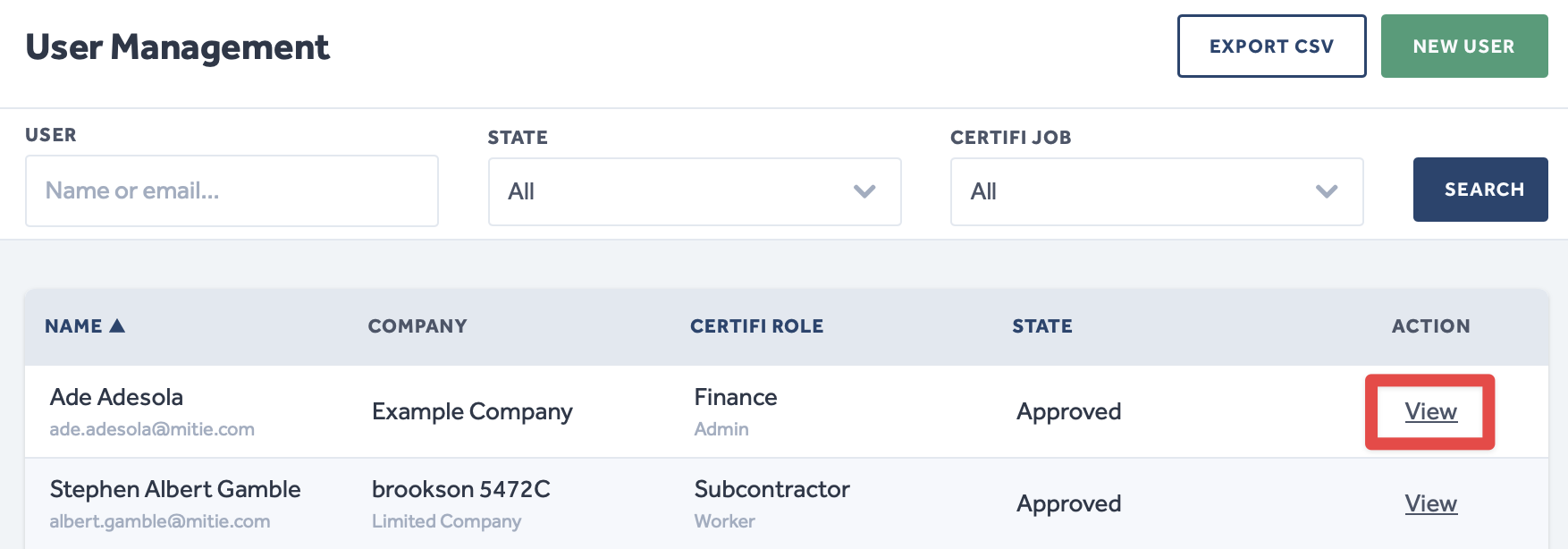
- This will open the user's profile.
- In the Account Information section, you can edit their profile fields to change the user's work information.
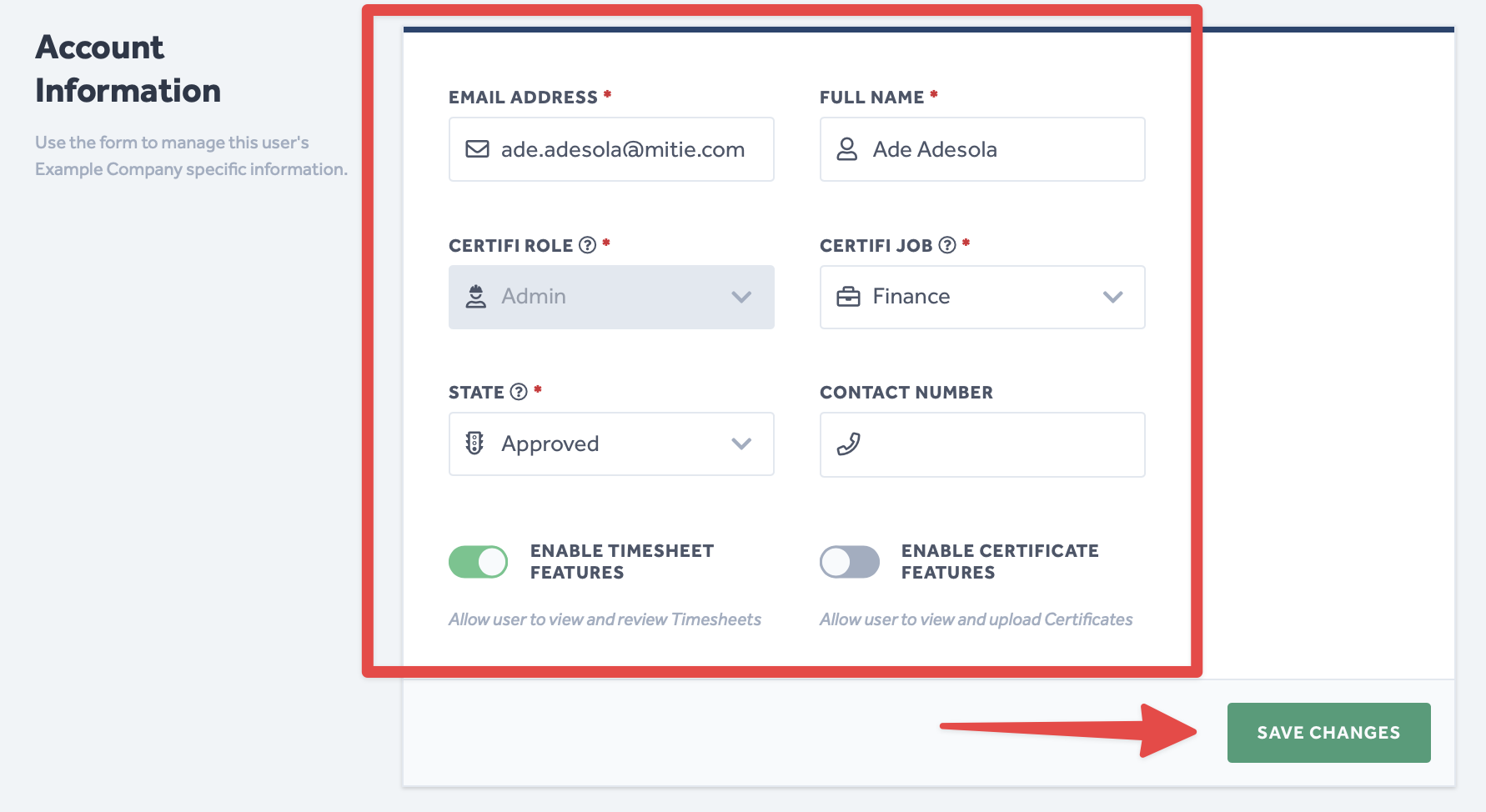
- Once you are happy with your changes, click Save Changes.
Updating a user's account information will send them a notification email informing the user of the changes made to their profile.
To protect the data privacy of our platform users, all data visible in images throughout this article is from a dummy dataset generated expressly for demonstration purposes. It is not real data.