If a Worker is missing an important certificate, Admin users can send them a request to upload it. To request certificates, follow these steps:
- Go to the Certificates tab (located in the page's header).
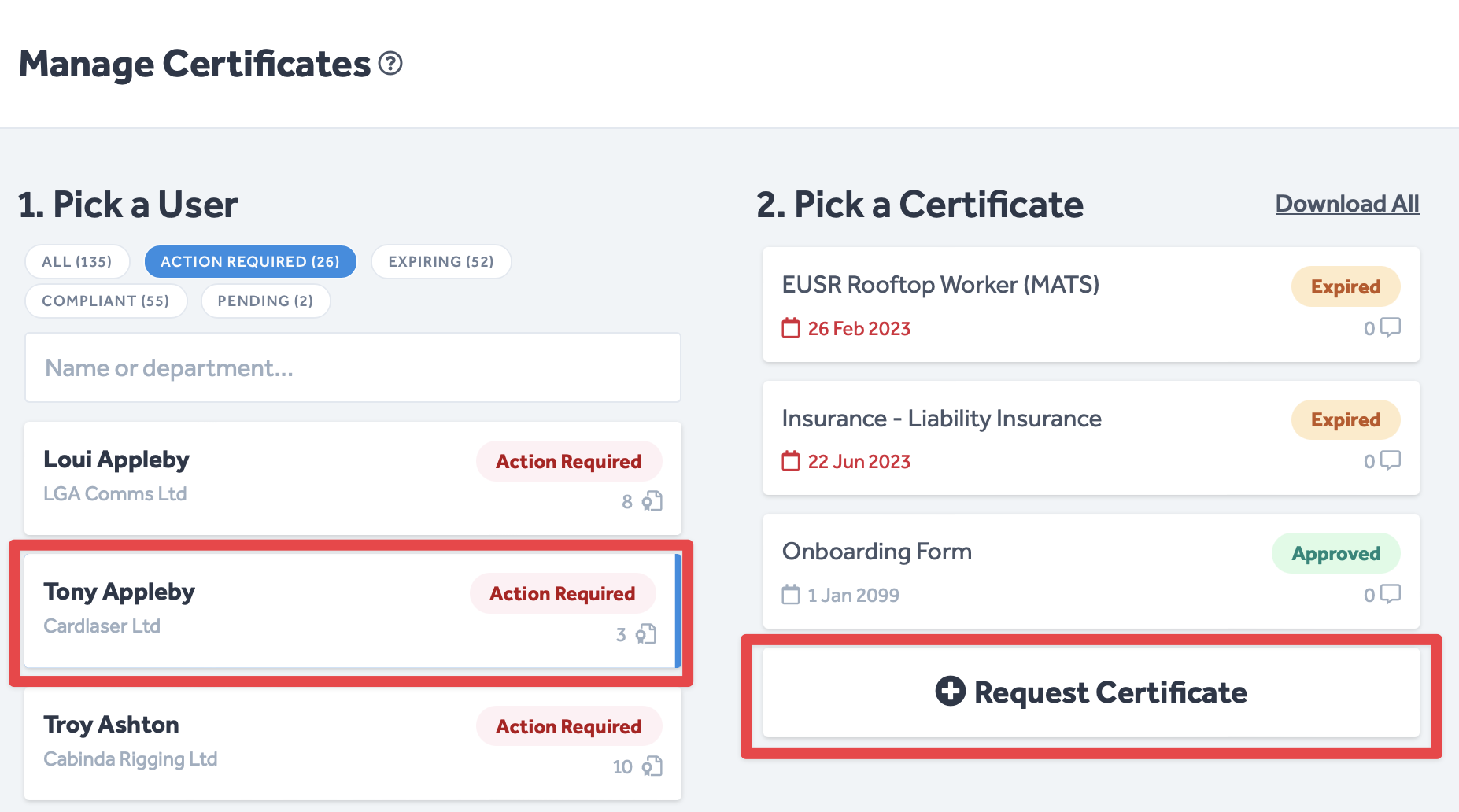
- From the Pick a User column, select a Worker.
- From the Pick a Certificate column, click on Request Certificate at the bottom of the list.
- The following Request Certificates pop-up window will appear:
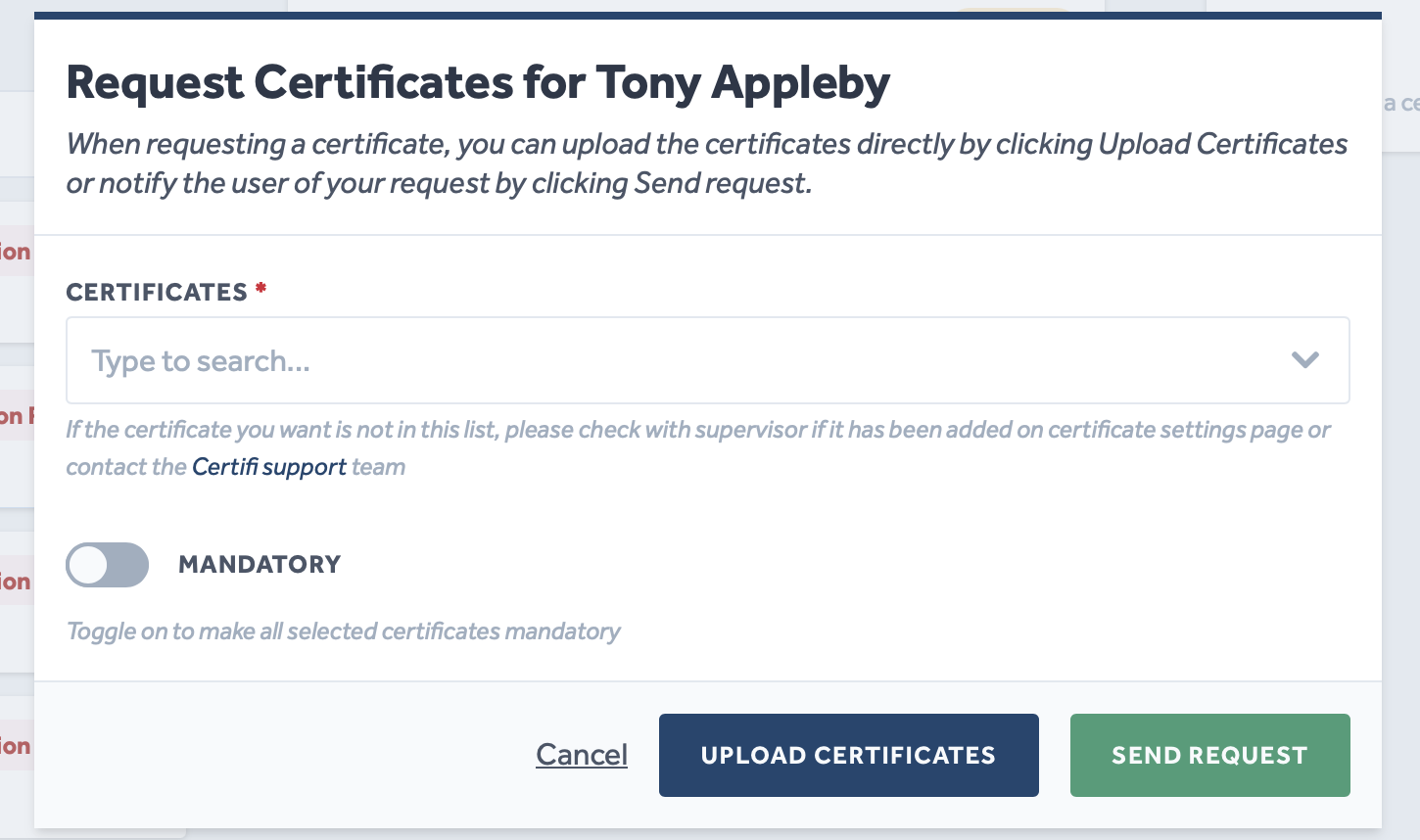
- The Certificates field in this pop-up window allows you to search by typing the name of the desired certificate and selecting it from the drop-down menu:

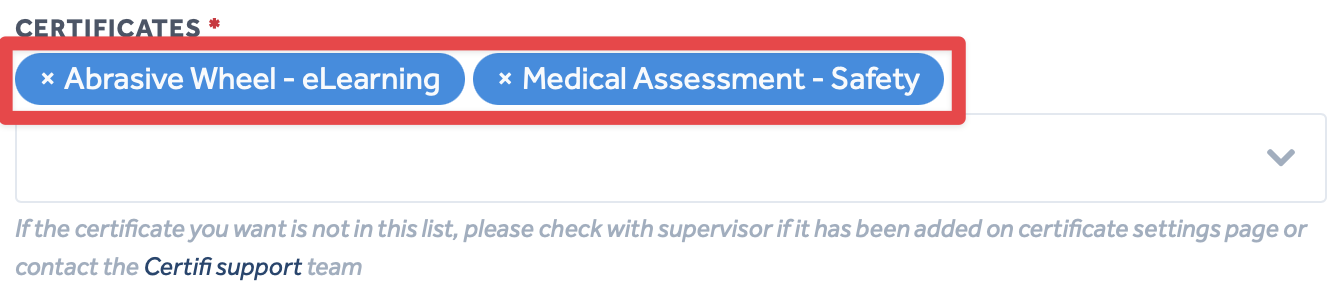
- Selected certificates will appear in blue above the search box:
Use the Mandatory switch to tag the requested certificate(s) as Mandatory within Certifi. Find out more about Mandatory certificates here.
- If you wish to upload the certificate(s) on behalf of the Worker, you can do so by clicking Upload Certificates.
- If you wish to request that the Worker upload the certificate(s) themselves, click Send Request.

Note: Selecting either option will add the new certificate(s) to the Worker's profile with the Pending tag. Selecting Send Request additionally sends an email to the Worker, prompting them to upload the certificate(s) themselves. Whichever option you choose in the pop-up window, you may now upload the Pending certificate(s) yourself.
To upload a Pending certificate on a Worker's behalf:
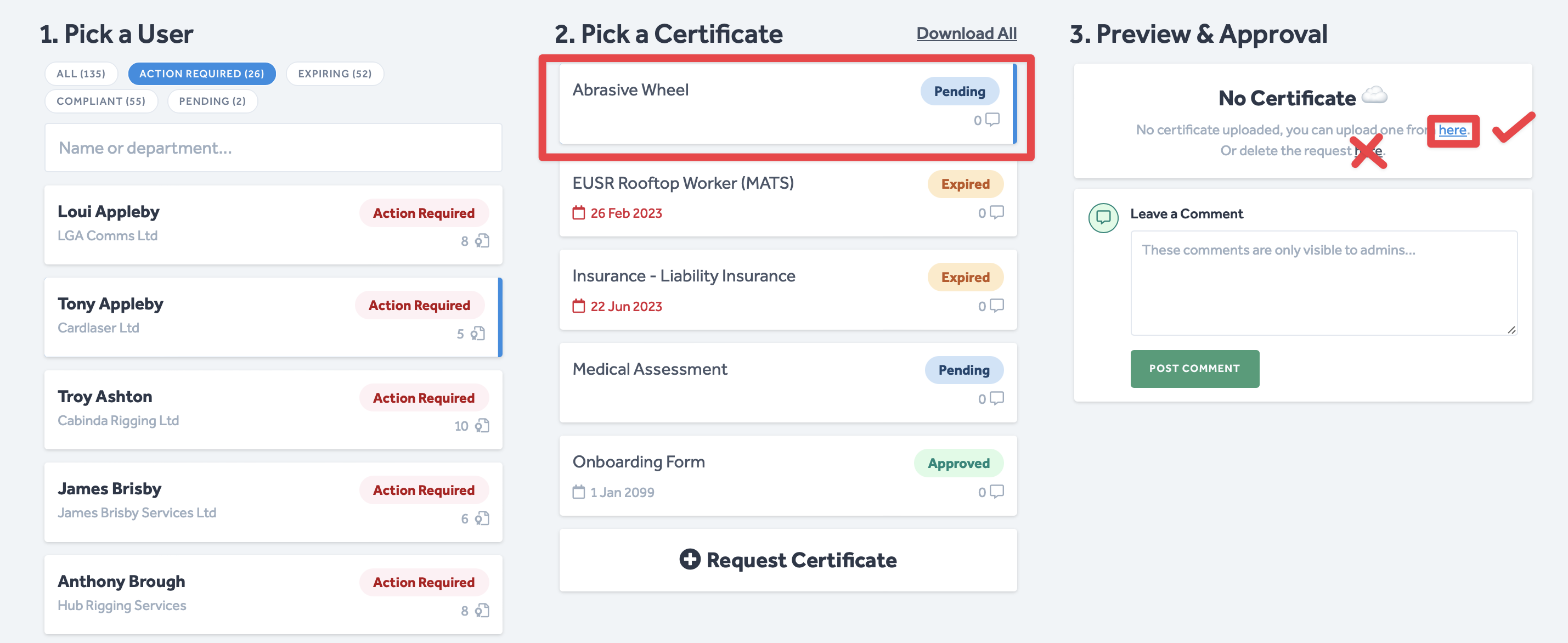
- Select a certificate marked with the Pending tag.
- In the Preview & Approval column, click the link marked 'here' as directed in the image below:
- You will then be presented with the Add a Certificate pop-up window:
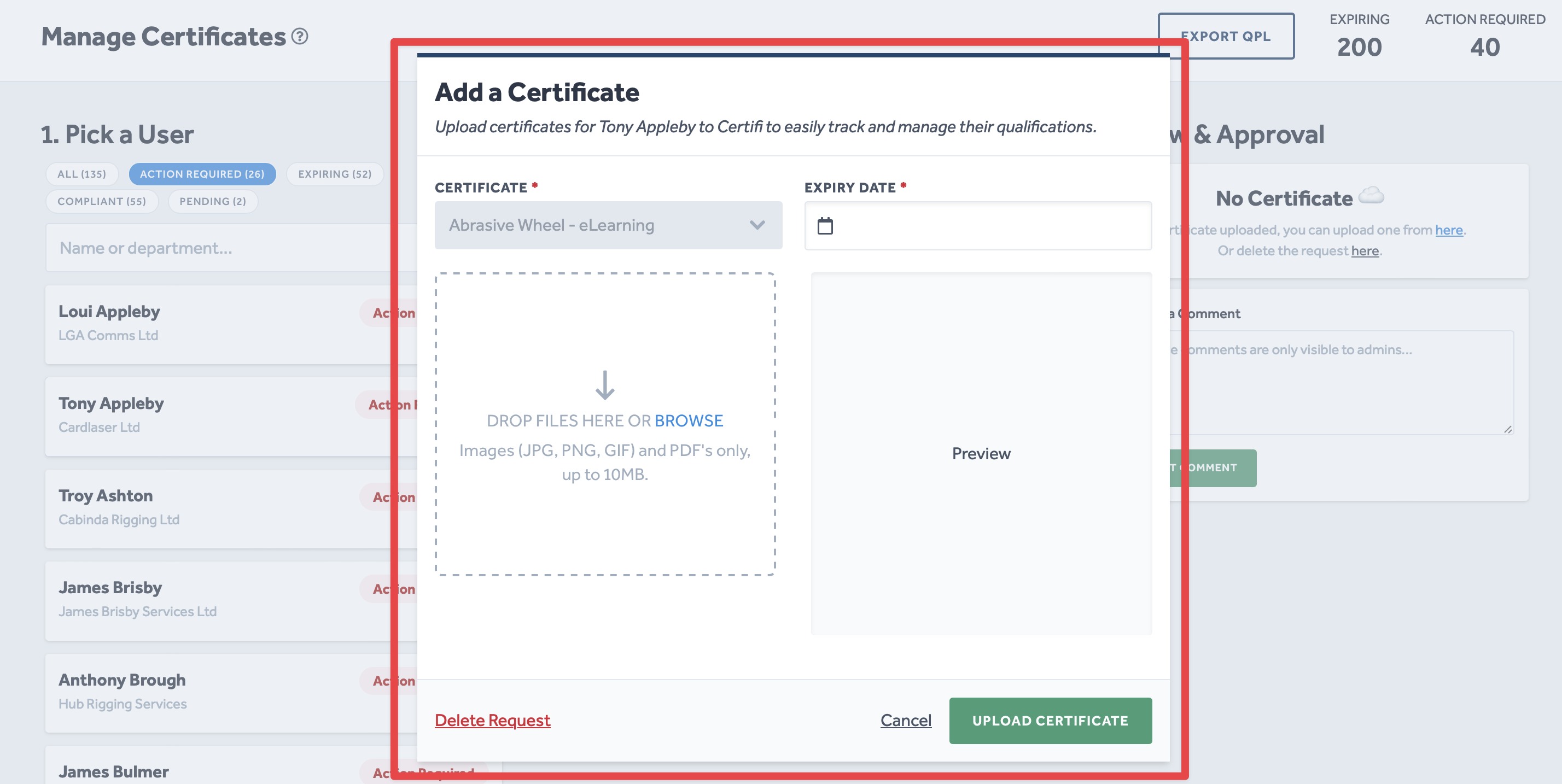
- Enter the new certificate's expiry date in the supplied field.
- Follow the instructions in the dashed box to upload an image of the new certificate.
- When you are happy with the information you entered, click Upload Certificate.
If an Admin user uploads a Pending certificate on behalf of a Worker, it is automatically approved. When a Worker uploads their certificate in response to a request, it must be approved by an Admin. To find out more about approving and rejecting certificate uploads, click here.
To protect the data privacy of our platform users, all data visible in images throughout this article is from a dummy dataset generated expressly for demonstration purposes. It is not real data.