Only Supervisor users can delete users from a Certifi workspace.
At times, removing a user from your Certifi workspace may be necessary. Follow these steps to delete a user from your workspace within Certifi:
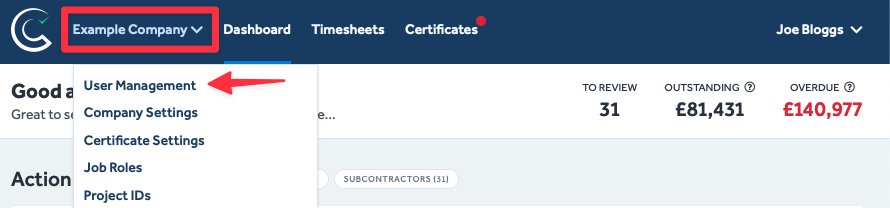
- Navigate to the User Management page by clicking on your company name (in the page's header) and then selecting User Management from the drop-down list.
- Once in the User Management menu, select View on the line of the user you wish to remove.
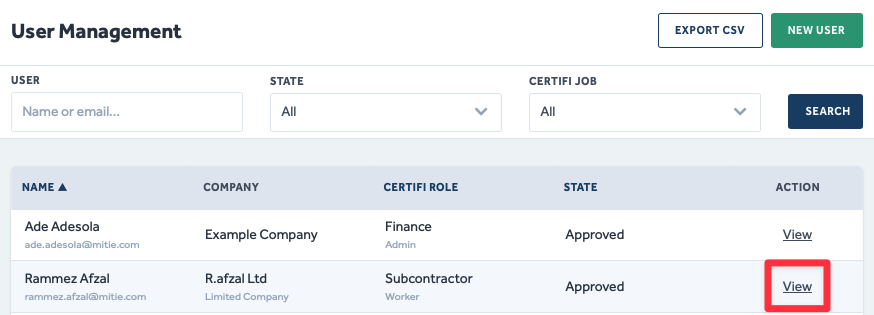
- This will open the user's profile.
- In the top right corner, click Remove User.
- If you are happy to remove the user, click Confirm in the pop-up window.
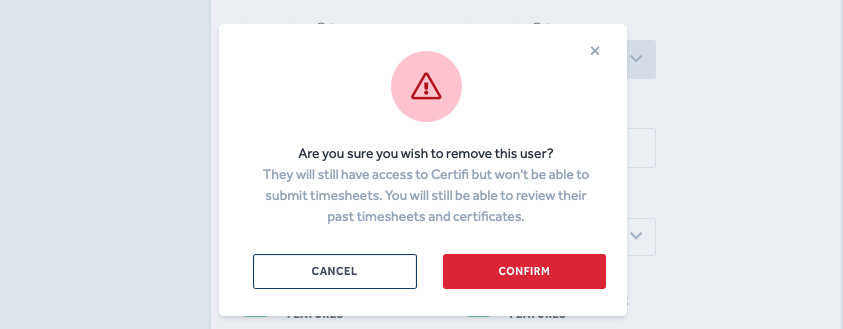
- After removing their profile, Subcontractor and Employee users can still log in to Certifi and view their past timesheets and certificates. However, they are no longer able to submit timesheets to you. As an Admin user, you can still access their old timesheets and certificates.
- Admin users, on the other hand, will have their accounts archived after removal. They will not be able to log in to Certifi anymore.
Sometimes, you won't be able to remove a user if the necessary conditions aren't met:
- A Subcontractor cannot be removed until all of their timesheets are in the Paid state.
- An Employee user cannot be removed until all of their timesheets are in the Paid state.
- A Project Manager user cannot be removed until all timesheets assigned to them have been approved, and their assigned Worker users have been re-assigned to a new Project Manager.
To reinstate a previously removed user, the following articles contain the instructions to create a new user:
Or you can reach out to the Certifi support team via the Get Help bubble.
To protect the data privacy of our platform users, all data visible in images throughout this article is from a dummy dataset generated expressly for demonstration purposes. It is not real data.