At times, it may be helpful to change your password. To update your password, follow these steps:
- Click on your name in the top right corner (in the header) of any Certifi page.
- In the drop-down menu, click Profile.

- Navigate to the Change Password section within the My Profile page.
- Fill out the fields to create a new password and click Update Password.
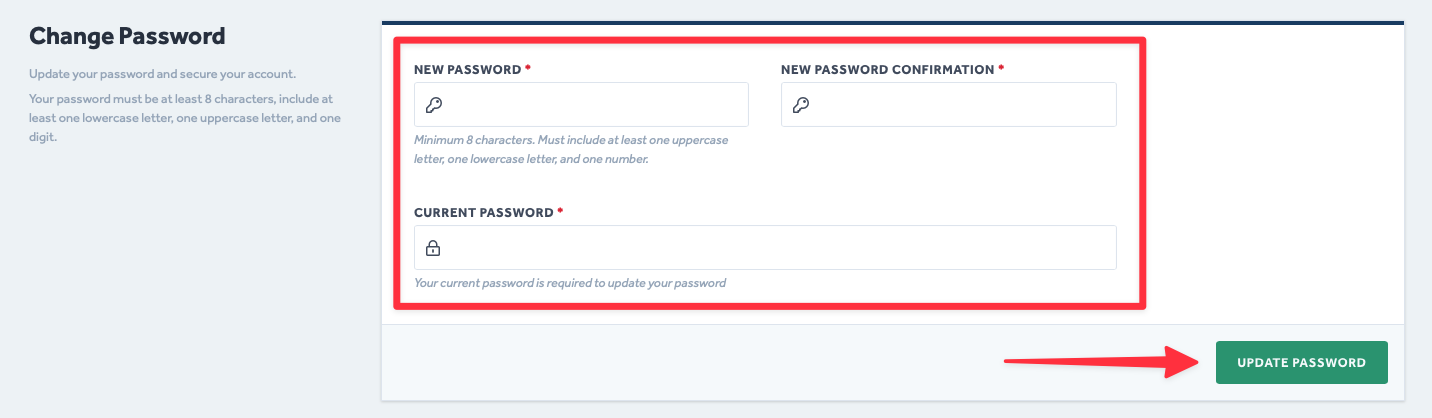
For security purposes, you must enter your existing password to make password changes. If you have forgotten your password, log out of Certifi and click 'Forgot your password?' on the Certifi login page.
To protect the data privacy of our platform users, all data visible in images throughout this article is from a dummy dataset generated expressly for demonstration purposes. It is not real data.